
Manager & Coach App Info
Pre-Game
Before the match, ensure that your team is ready for the game by following the steps below:
- Update your roster in GotSport, and add any “Club Pass” players – INSTRUCTIONS
- Check and create your game day roster in the NorCal App – INSTRUCTIONS
- Create your game day lineup – INSTRUCTIONS
- Assign someone on your team as the event reporter (more info below) – INSTRUCTIONS
Team Check-In
Team check-in will be done via the Digital ID cards in the app. To give the referee access to your match and your players’ ID cards, you must check the referee into the match with the Referee Check-In QR Code. This will assign the referee to the match and give them the ability to access player cards and add match events (red cards) to the game.
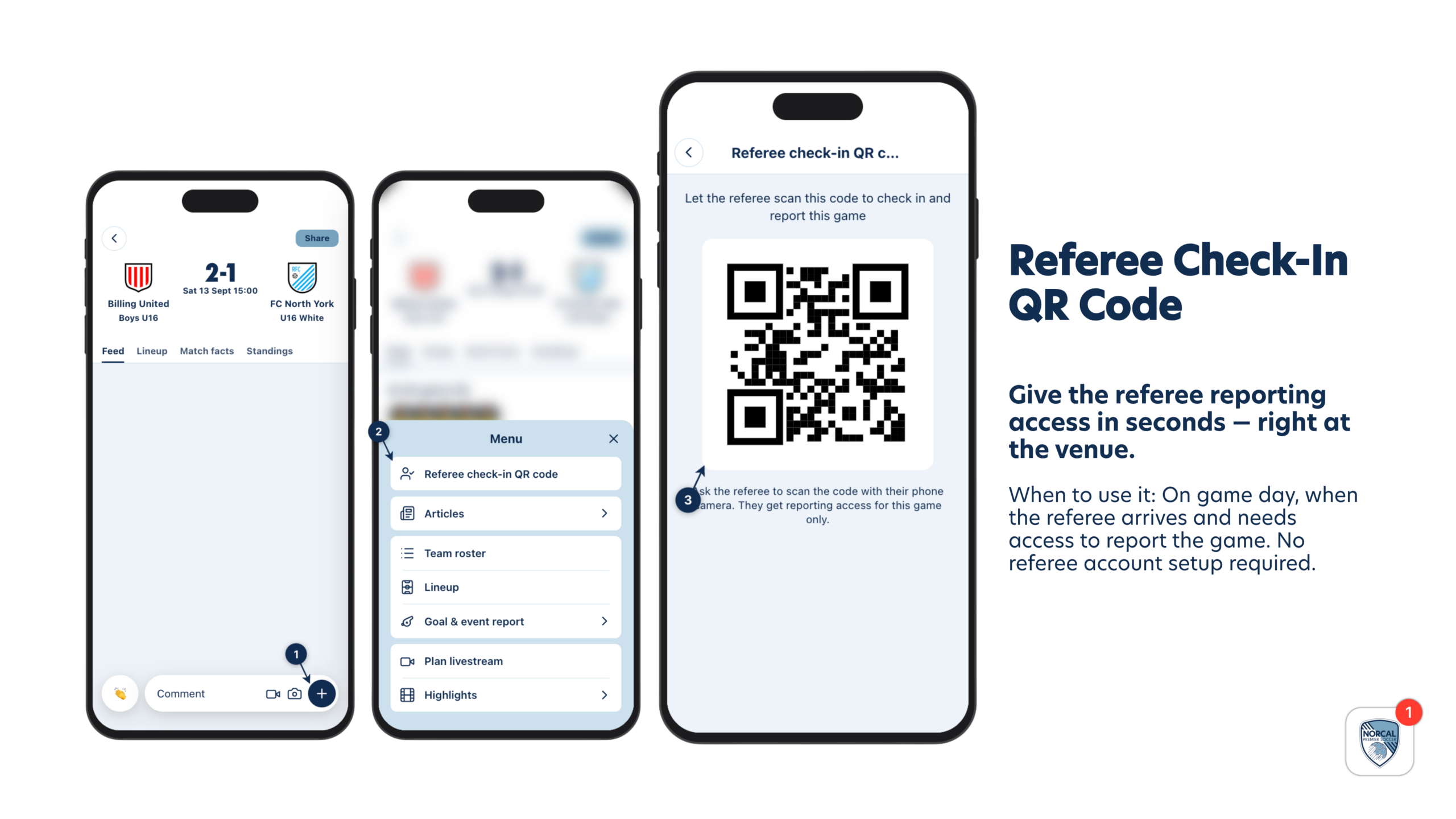
Referee Check-In QR Code – INSTRUCTIONS
Please note that only players and staff who are on the game-day roster that you have created will have their passes appear for the match.
The referee will then check in your players and verify all players and their jersey numbers. If you need to change any jersey number, you can do so in the roster section outlined above.
In-Game Goal & Event Reporting
The home team is responsible for providing a game reporter who will log the following game actions during the match.
- Goals
- Assists
- Cards (yellow and red)
The in-game log will not only record the match actions for the post-game report, but will also update all of the team followers on the details of the match through app notifications and populate the club, team, and player media pages following the match.
To report in-game events:
- Ensure that someone is assigned or has access to be an Event Reporter (coaches and managers automatically have these permissions) – INSTRUCTIONS
- Start the first half when the game starts – INSTRUCTIONS
- Reporting a goal – INSTRUCTIONS
- Reporting a card – INSTRUCTIONS
- End the first half – INSTRUCTIONS
- Start the 2nd half – INSTRUCTIONS
- End the 2nd half – INSTRUCTIONS
Instructions on all event reporting in the app can be found HERE
Only a designated reporter can add game actions. Team admins have automatic access to this feature, but can also designate anyone associated with the team to do this as well. Instructions on how to assign an event reporter can be found HERE.
Post Game Reporting
Following the match, the center referee will present the coach or manager with the Referee Match Form (these are the notes that the referee keeps during the match). This will contain all relevant match details, and both teams should take a photo of the Match Form.
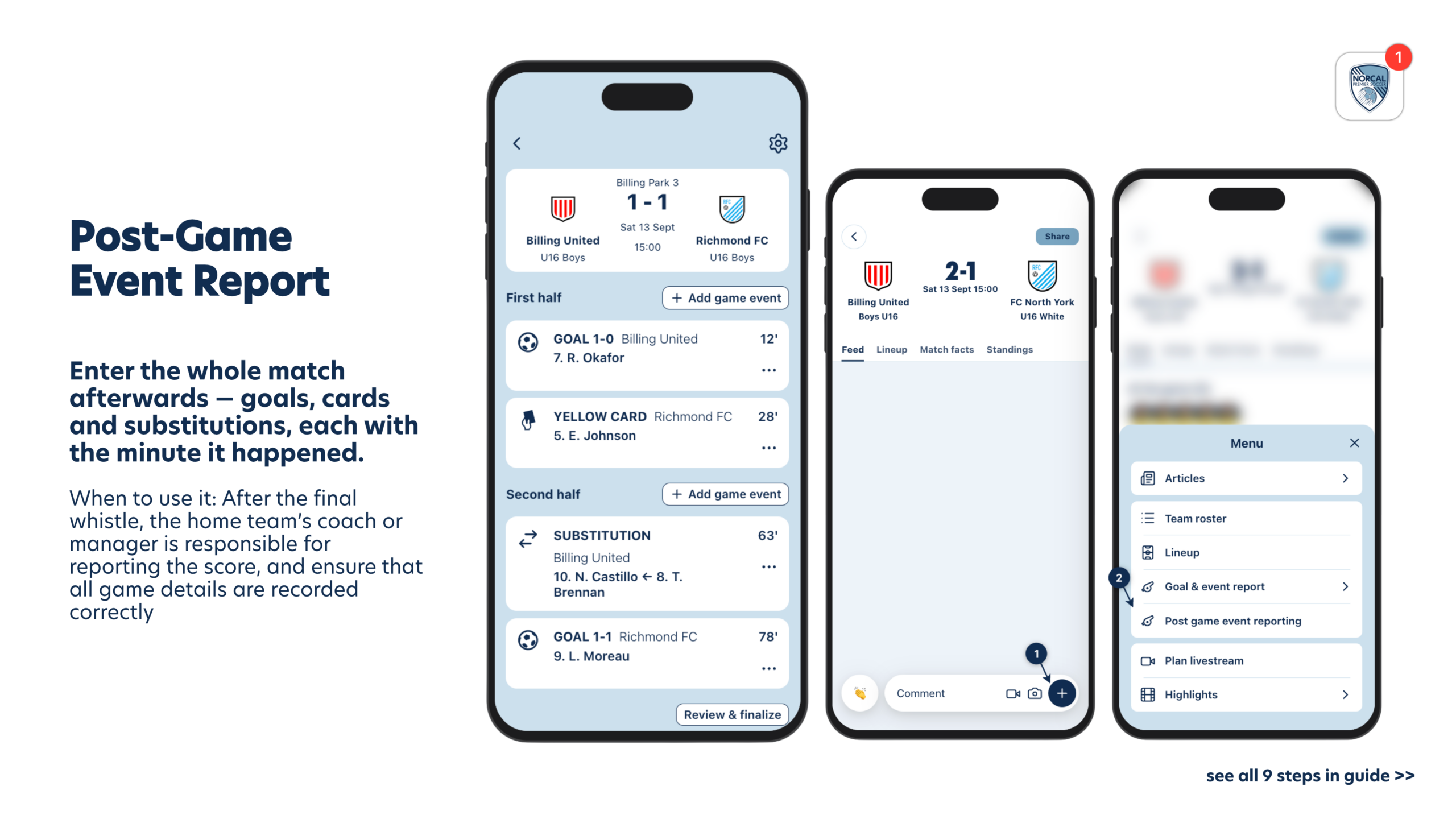
The home team admin (coach or manager) is responsible for reporting the score following the match, and ensuring that all game details are recorded correctly – INSTRUCTIONS
Video Tutorials
Learn how to use the NorCal App to do your Coach/Manager game related tasks in the below Tutorial Video Series below, or, on this YouTube Playlist.
Video # 2 — Team Chat & Scheduling
Video # 3 — Pre-Game Roster, Setting your Lineup & Check-in
Video # 4 — Live Updates, Live Streaming & Highlights
Video # 5 — Post-Game Score Reporting