
Referee App Info
App Overview
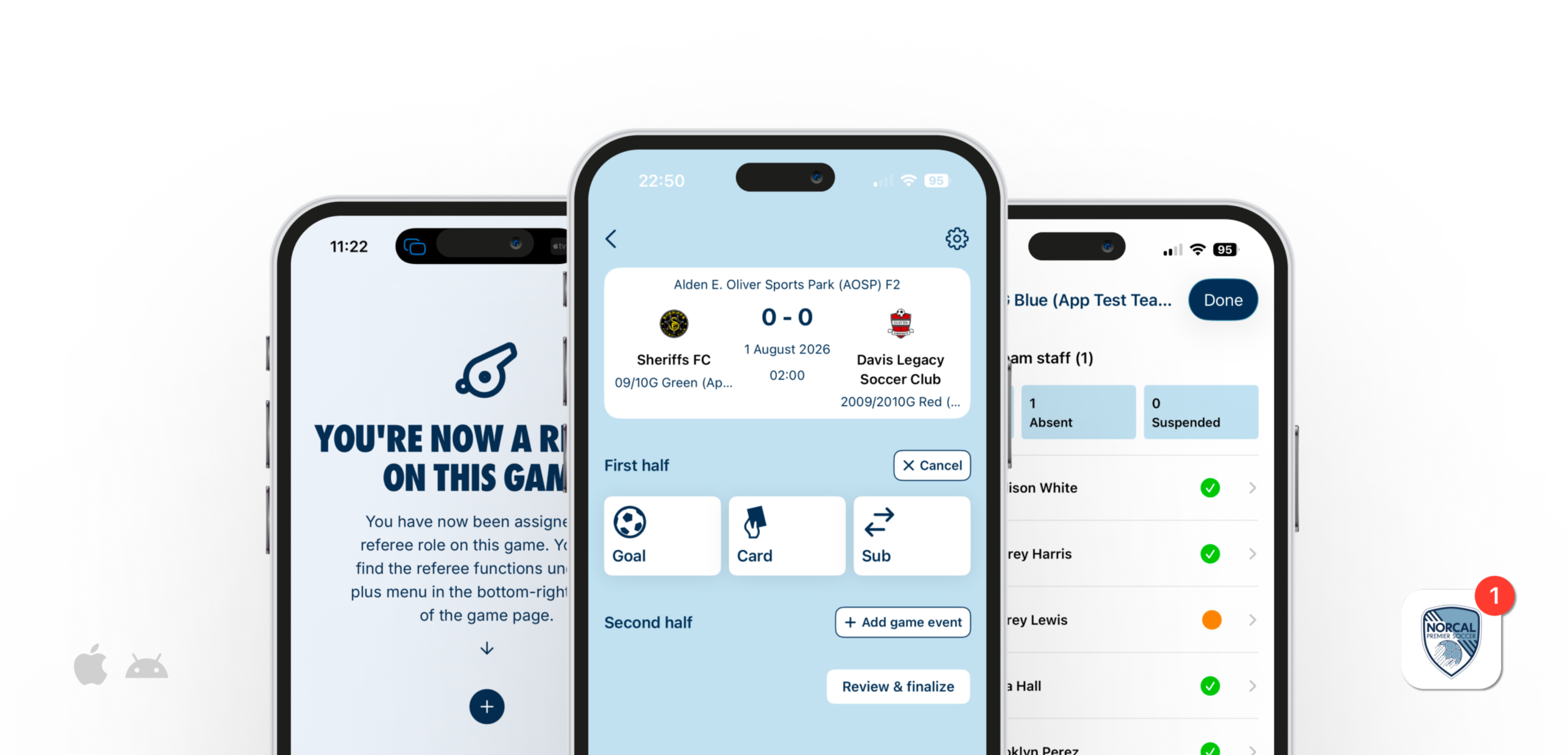
NorCal Premier Soccer is excited to launch the NorCal App, a FREE dedicated mobile application that will enhance the way clubs, coaches, players, referees, families, and fans experience soccer throughout our community. The app will provide one place to manage matches, follow teams, and stay connected to the game as it happens.
The NorCal App is fully integrated with GotSport, NorCal’s existing competition management system — meaning the tools clubs, coaches, team admins, and referees already use will now power a richer, real-time experience for everyone.
For our referees, the NorCal app streamlines your game day experience with digital check-in, simplifying post-game reporting, and keeps all of your game assignments so you can go back and edit/ add information later, all in one place.
Download/ Log-In
The NorCal App now available for iPhone and Android devices from both the Apple App Store and Google Play Store.
Once you download the app, you will be able to log in with the email that is associated with your GotSport account. If you don’t have a GotSport account, then enter your email. The system will send you an email with a login code; enter that code, and you are logged into the app.
Pre-Game
Prior to the start of the match, at least one referee from the crew will need to be given app access to the match by the home team. This is done by scanning a QR code with your phone.
Once given access through the app or the mobile web version, the referees will need to perform a Digital ID Check of all players and coaches.
Post-Game Reporting
During the match, all three referees should take notes on all actions in the match, including:
- Goals – record time and player number
- Discipline – record time, player #, and reason (both yellow and red cards)
Referees can use any match report form, such as an Official Sports form, but NorCal has also created a form that you can download and print for free here.
Following the match, the center referee should speak with both the home and away coach or manager and allow them to take a picture of the match report form. Using that form, the home team coach or manager will report the score and game details.
Reporting Red Cards
All in-game discipline will be managed through the NorCal App, there is no need for referees to submit separate Match Reports for any red cards issued in the match. To submit a red card report, you either add or edit the match summary. This can be done directly after the match, or later in the day. Once you have been given access to the match by scanning the QR code at the field, you will have access to the match in your app, or if you do not have the app installed will be sent an email with a link to the match where you can enter match details later.
If a match reporter has entered live game information, the red card will appear in the post-game summary. If the home team has not done that, then you will need to enter the information.
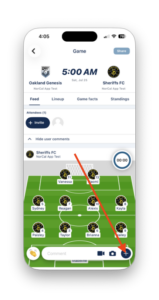
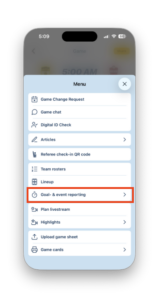
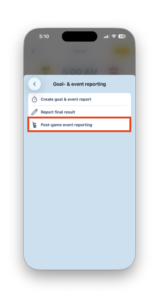
Find the match in your NorCal App, or in the web version from the QR code that you scanned prior to the match. Once in the match feed, click the plus button on the bottom right corner, and select “Goal & event reporting,” then “Post-game event reporting.”
If the red card has been entered by the match reporter:
When you review the post-match summary, click the three dots on the red card, and click edit.
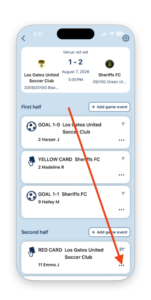
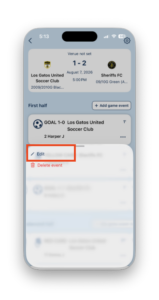
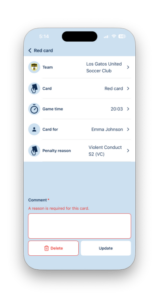
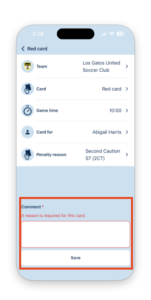
Ensure that the information entered is correct (team, time, player, reason). If any of these are blank, ensure to enter them now. You MUST provide your description of the event in the comment box at the bottom of the page.
If the red card was not entered by the match reporter:
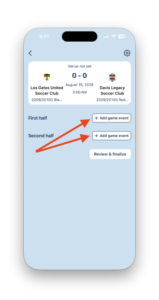
Confirm the game details, click “+ Add game event” for the correct the correct half, then click on “Card”
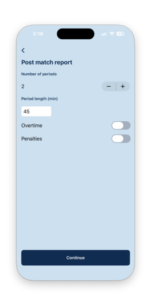
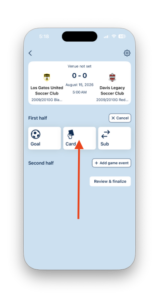
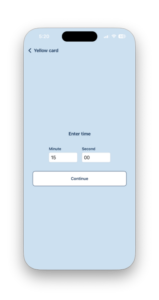
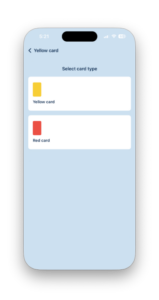
Enter the minute the card was given, which card (yellow or red), which team it was issued to…
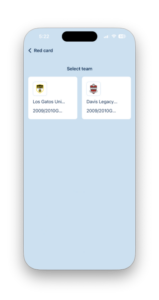
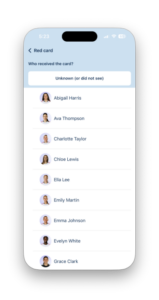
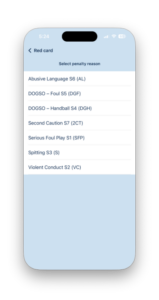
…the player the card was issued to, the reason, and finally you must describe the incident in the comment box at the bottom of the last page, then click “Save.”
Other Reporting - Referee Match Reports
While all in-game discipline will be reported through the app, for the incidents below, referees will need to fill out a NorCal Referee Match Report.
- Game Abandonment
- Mass Confrontation
- Sideline Issues
- Discriminatory Behavior
- Serious Injury
- Other issues as needed
What Ifs
While most games will operate with no issues, we want to provide clear instructions for referees if for some reason things do not work properly.
App does not work on my phone: If the app does not work on your phone and you can not pull up the player cards or roster when scanning the QR code, follow the steps below:
- Use one of the managers’ or coaches’ phones to review player passes and roster to check players in and submit the post-match report.
- If none of the phones are working and no one can pull up player passes, then player passes of any form may be used to play the match, including physical passes and photos/ screenshots of passes. If this is the case, the game is automatically played under protest, and a NorCal match report should be submitted by the opposition.
Player is not on the roster: as outlined in the NorCal Handbook, all players should be on the electronic game roster to be eligible to play in any NorCal match. If a player is not on the roster and thus their digital ID is not available for check-in, follow the steps below.
- Instruct the team manager or coach to have them added to the electronic event roster. Once they are added, they will be available in the app for selection onto the game day roster and have a player pass. They can be checked in at any time during the match by showing their player pass in the app to any official.
- If the player can not be added, or if they are added in GotSport but not showing up in the app, they may play as long as they show a valid US Club Pass from the club they are playing with. If a player can not be added, the referee should inform the opposition that the player has a valid pass but can not be added to the roster; the opposition can file a protest if they choose.
- If a valid US Club Pass can not be shown, then the player may not play.
Coach is not on the roster: While every effort should be taken to add all staff who are in the technical area to the game day roster, a coach may be on the sideline as long as they have a valid US Club Pass, but the following steps should be taken by the referee.
- Take down the coach’s name as you check their coaching pass – note this on your Game Report Form in case you need to report any issues to NorCal.
- You do not need to report if this is the only issue.
A player arrives after check-in is complete: The eligibility rules are unchanged — a late-arriving player can enter the match as long as they have a valid player pass. You don’t need your own phone for this: the coach or manager can show you the player’s pass on their device to check them in, even mid-half. A player initially marked absent can be updated later if they show up.
A Red Card is issued to a player or coach who is not on the game day roster: Because red cards are reported through the app and are tied to the game day roster, if a player or coach is not on the game day roster in the app, you will need to follow different instructions to report that red card.
- Report a red card as outlined above
- Instead of selecting the player or coach name, you will select “Unknown (or did not see)” at the top of the page
- Enter the player or coach’s name in the comment section of the red card report.